

Jacob Jan Founder, Scalable
Writes about commerce AI and creative operations.
How-to
Amazon variations: build a full parent listing in 2 clicks
One master listing in. Every color, size, and material variation out. No re-shoots, no designer.
TLDR
- Every new color or size needs its own polished image, and doing that solo eats the time and money you are short on.
- You can build a clean, matching set yourself, with no photographer, designer, or agency budget.
- Done right, your variants read as one confident brand, not a page of mismatched photos.
- Inside: how Amazon variations work, and a repeatable way to make every option's image match.
You nailed the main listing. The hero image earns the click, the gallery tells the story, and the reviews are coming in. Then you add a second color. And a third. And the large size. Suddenly one polished page has become a dozen images to shoot, edit, and match, each one a small tax on your week.
For most solo sellers, variations are where a good listing quietly falls apart. The first product looks premium. The rest look like whatever you could manage at 11pm. This guide fixes both halves of the job: the Amazon setup, and the images that quietly eat your evenings.
What are Amazon variations (parent-child listings), and why do they pay off?
Quick answer
Amazon variations (also called Amazon product variations, or parent-child listings) let you sell every color, size, and material of a product under one page. Setting one up has 2 halves: the Seller Central structure (a non-buyable parent ASIN with a buyable child for each option) and the images (a clean, on-brand photo for every child). This guide covers both, then shows how to generate the whole image set from 2 clicks.
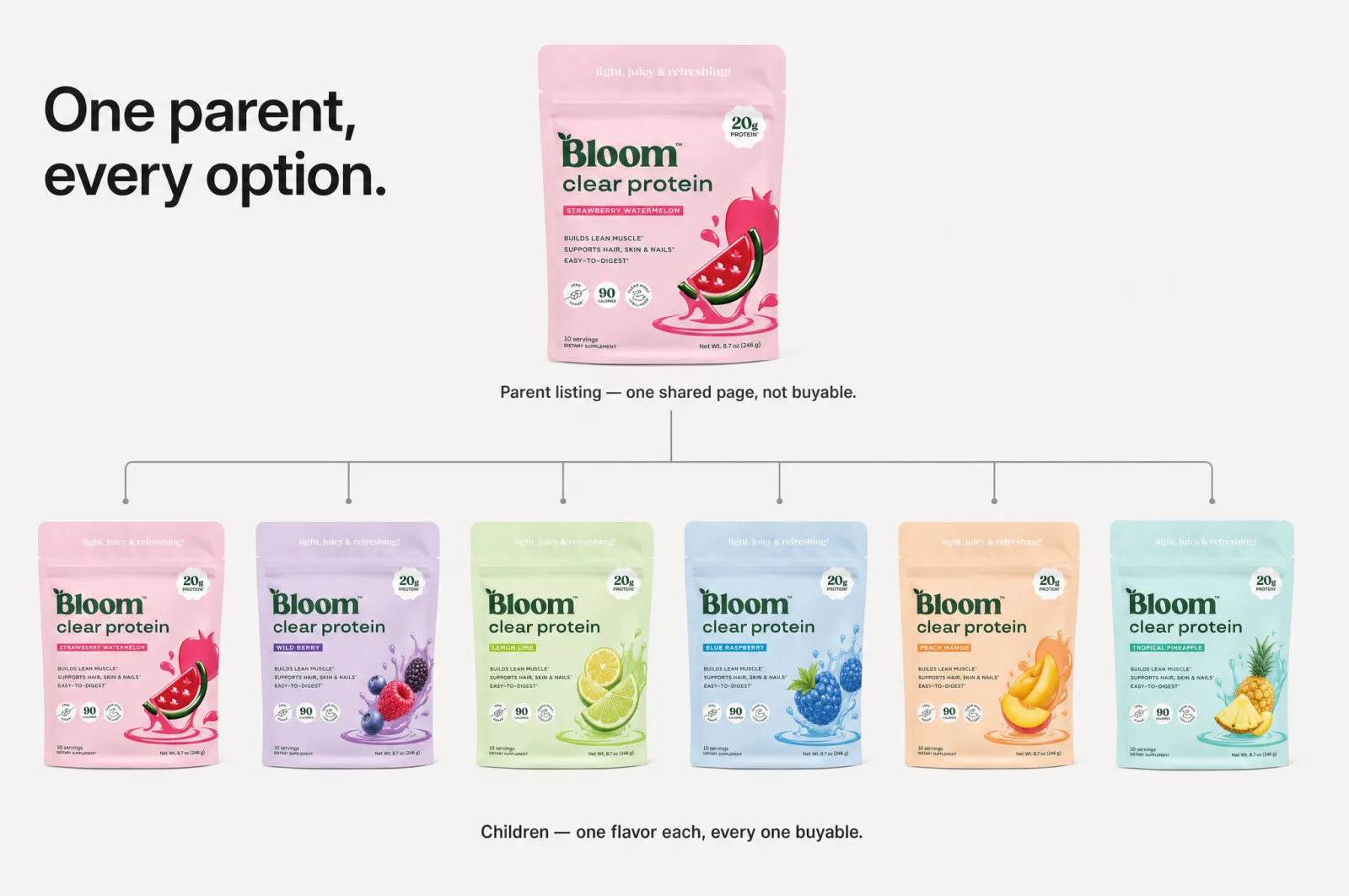
An Amazon variations listing groups related products under a single page. Same item, different color, size, scent, or material, reachable from one set of swatches. Amazon calls it a parent-child relationship. Per Amazon's documentation it has 3 parts [1]. The parent is a non-buyable ASIN that appears in search and ties the family together. The children are the buyable options. The variation theme sets how they differ, for example color or size.
It pays off for 2 reasons. Related products and their reviews sit on one page instead of scattering across 5, so shoppers compare options in place. And a buyer who wants the blue one finds it in a click, with no bounce to a competitor who made it easier.
Tip
If you already sell in colors or sizes, you almost certainly want a parent listing. Separate pages for each option split your reviews and make every variant fight for rank on its own.
Set up the parent and children in Seller Central
The structure comes first, before any image work. In Seller Central you build it when you add a product (Catalog then Add Products, then the Variations tab), or with the Variation Wizard to create the family in bulk [2]. It comes down to 3 decisions.
- Pick a variation theme. The theme is the axis your options vary on, and the valid choices depend on your category. Common ones are Color, Size, or both at once. Grocery and pet categories add themes like flavor or scent [3]. Choose the one that matches how buyers shop your product.
- Set the parent and the child SKUs. The parent is a non-buyable container with no price or stock. Each child is one real, purchasable option with its own SKU, its own product identifier (EAN or UPC), price, and quantity [2]. A tumbler in 4 colors and 2 sizes is one parent holding up to 8 of them.
- Fill the image slots for each option. Every option gets its own main image plus gallery slots. It decides whether the page looks premium or thrown together.
Note
Get the theme right the first time. Changing a variation theme after a listing is live is painful and sometimes means rebuilding it, so decide Color vs Size vs size-and-color before you start.
The real bottleneck: an image for every child
The structure takes a few minutes. The images are where ecommerce product photography turns into a grind, because every child needs its own, and the usual routes each cost you.
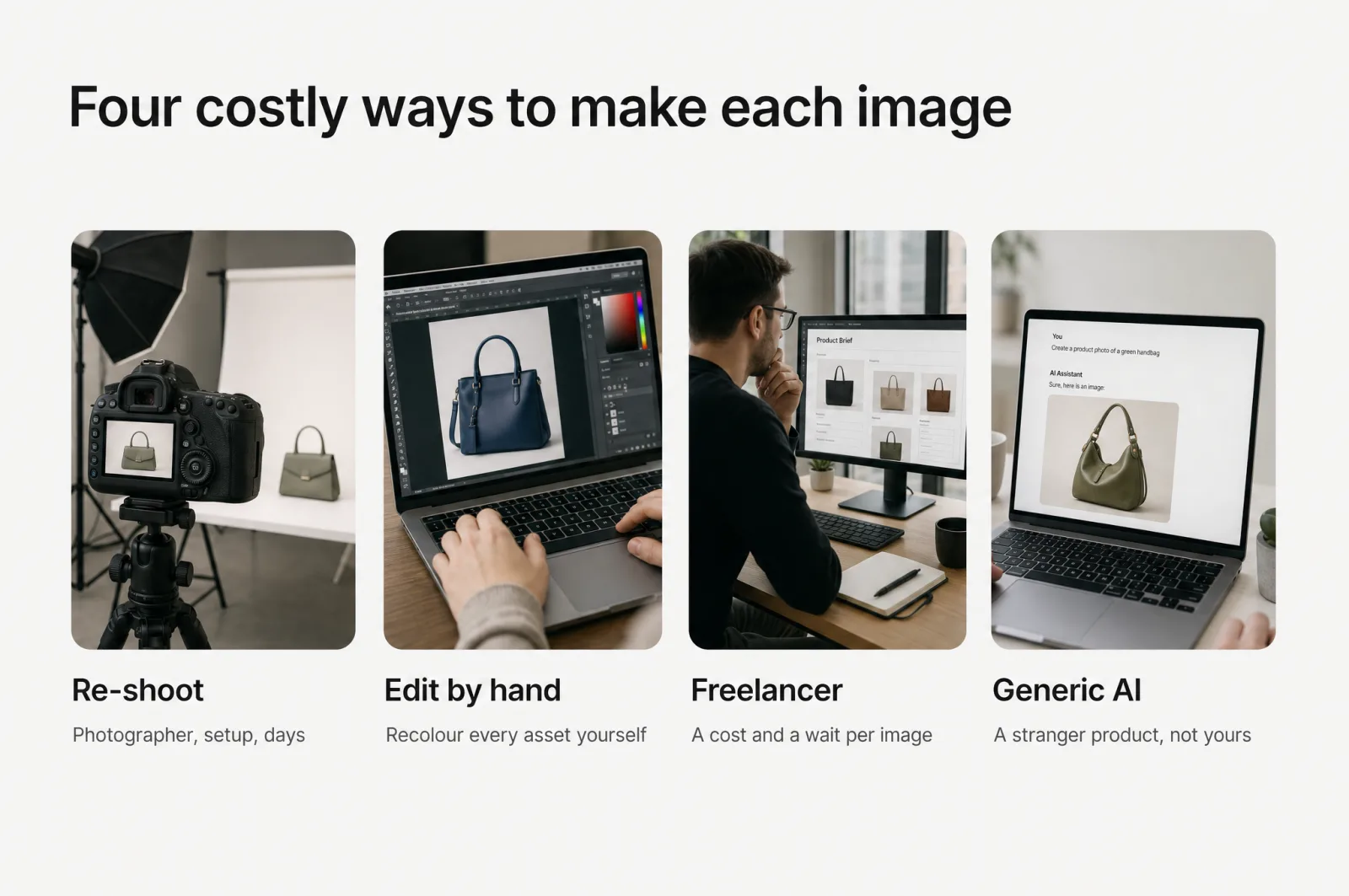
- Re-shooting each color or size means a photographer, a setup, and days of turnaround for something you will do again next quarter.
- Editing by hand in Photoshop means recoloring and compositing every asset yourself, if you have the skill and the hours.
- Briefing a freelancer per variant means a cost per image and a wait, then a revision round when the blue reads more like teal.
- Prompting a generic AI tool (ChatGPT, Midjourney) means describing a scene from scratch for every option and getting a stranger's product back, not yours.
None of that scales when you are one person running the whole brand. So the extra options get skipped, or shipped rough, and the page that could convert never does.
How to make matching variant images yourself
You can get clean, consistent ecommerce product photography without a studio. Make one strong master and design it so the variants come cheap.
- Shoot or build that master on a plain, even backdrop. A clean background makes recoloring and compositing easier.
- Keep the product on its own layer. If the item is separate from the background, swapping color or dropping it into a new scene is a small edit, not a re-shoot.
- Standardize crop, angle, and lighting. Matching framing across the whole family is what makes it read as one brand. Mismatched angles are the giveaway of a rushed listing.
- Get each option's main image right first. It carries the click, so nail it for every variant before you polish the gallery.
- Upload them to each child. Add the images in Manage Inventory, or feed their URLs through the same variation upload template you built the SKUs with.
Follow that method by hand and a clean set is yours, just slow: it eats the evenings you do not have. The faster version runs the same principles through a tool that already knows your product.
Do it in 2 clicks with Scalable
Scalable applies that method automatically. You start from a listing you already like and let it build the family around it.
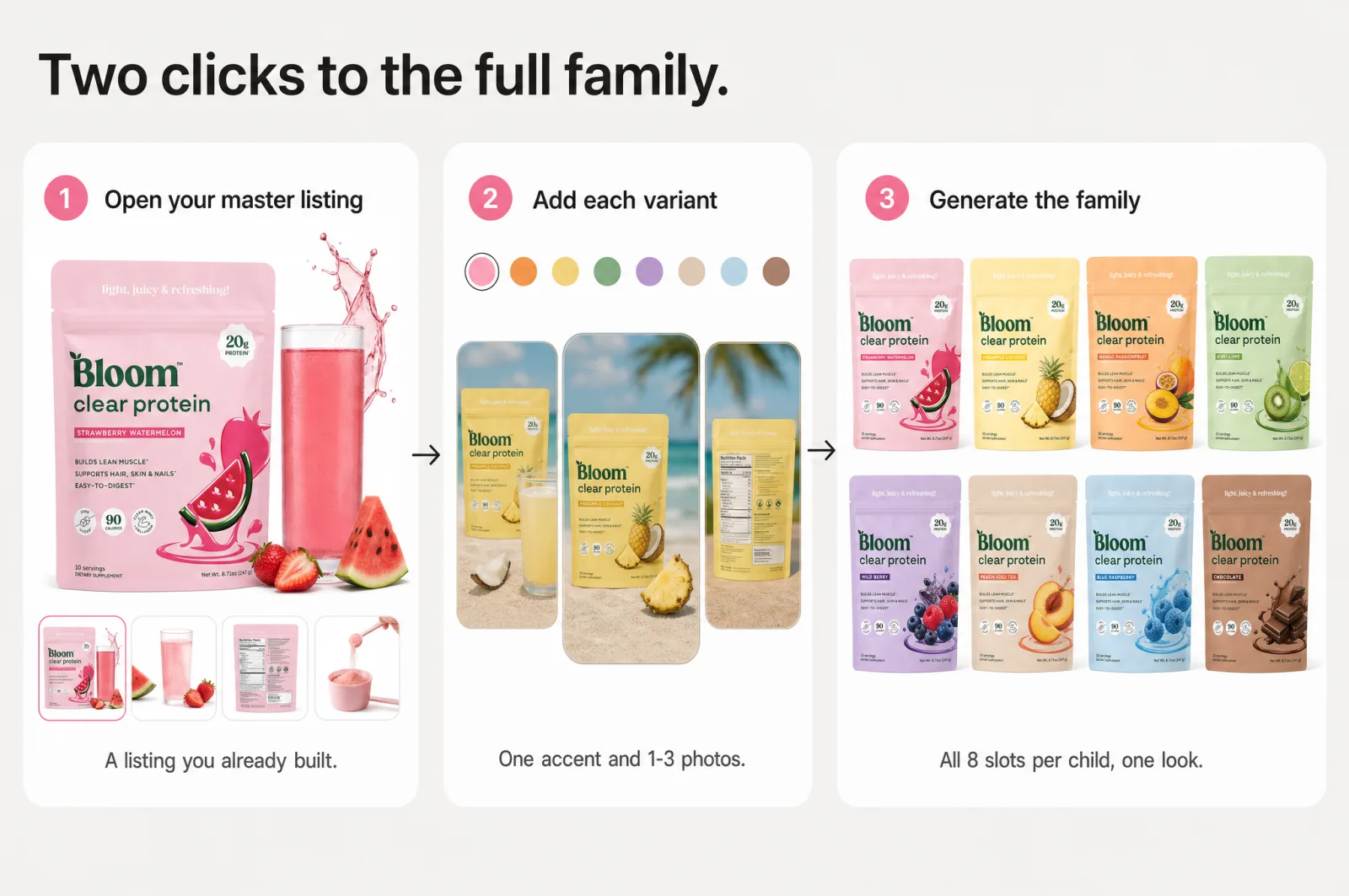
- Open your master listing. Point Scalable at your best existing one, up to its full 8 slots (main plus 7 gallery images). This becomes the reference for everything that follows.
- Add each variant, then generate. Give each option 1 to 3 quick phone shots of the real color plus its accent. Scalable regenerates all 8 slots for that child in the master's composition, lighting, and design system. That is the second click: the full parent, generated.
Each child carries the same look as the original, with only the variant-specific parts changed. The parent reads like one brand, not 5 different vendors. No scene to describe, no prompt to write. Pick your best listing, drop in a shot of each color, and you are done. The learning curve is almost nothing.
Every generated image stays editable. You can replace a product, erase a distraction, change an image format, or upscale to 4K, per variant, without leaving the page. When the set is ready, each variant downloads as an Amazon-ready ZIP with slot-correct, SKU-named files for bulk upload.
Keeping the whole family on-brand
Generating a dozen images is easy. Making them look like one brand is the real test, where most AI tools produce a page of mismatched pictures.
Scalable solves it with brand kits. You lock your colors, type, and style once, and every variant is generated inside those rules. The set is cohesive by design rather than by luck. A shopper flicking through your swatches sees a single confident label, not a stack of stock photos that happen to share a listing.
When you are ready to expand
Once the family is built, 2 more moves that were once separate projects come almost free.
Go multi-marketplace when it makes sense. With the set built, you can translate the whole listing into any of 12 storefront languages. The same fan-out carries every color variant into each storefront at once. Only the on-image words change; the scene and product stay put. It is upside for later, not a hurdle you need today.
Keep improving the images that carry the sale. Every option inherits a master built from your real reviews and conversion drivers, not guesswork, so each variant works to convert, not just to blend in. Matching, premium swatches keep shoppers deciding on your page instead of clicking to the seller who made it easier. Your parent listing becomes a system you improve, not a chore you dread repeating.
Build your first variation set free
You do not need a design background or a freelancer budget. Your first product and brand kit are free, so you can build a full variation set before you pay anything. Paid plans are credit-based: you spend credits only when you generate, sized for one person rather than a full team.
Solo sellers and household names alike generate more than 127k assets a month on Scalable, from one-person Amazon shops to OxiClean and Beurer, 7,500+ brands and agencies in all. Onboarding takes you from a product to a polished listing in under 5 min.
Pick the listing you are proudest of and turn it into the full family it deserves. You can generate your first set of on-brand Amazon product variations free and watch the parent come together in 2 clicks.
Start free with Scalable and ship every variant today.
Frequently asked questions
- What are Amazon variations (parent-child listings)?
Amazon variations, also called Amazon product variations or parent-child listings, group related products that differ only by attributes like color or size onto one product page. A non-buyable parent ASIN connects the buyable child ASINs, and a variation theme defines how they differ. Shoppers switch options with a swatch instead of landing on separate listings.
- Do I need a designer to create variation images?
No. You can shoot one master on a neutral background and recolor or recompose it for each option, or use an AI tool built on your product to generate the set. The key is consistency: same crop, lighting, and angle across every variant. A designer makes that easier but is no longer required for a clean, matching set.
- How do I keep AI-generated variation images on-brand?
Lock your rules before you generate. Fix your colors, type, and style, then apply them to every variant so the set is cohesive by design, not by luck. Tools with brand kits do this automatically. Without one, keep a simple style sheet and check each image against it before you upload.
Sources
- 1.How to create Amazon product variations (Amazon Seller)
- 2.Create and manage product variations (Amazon Seller Central Help)
- 3.Variation relationship FAQ (Amazon Seller Central)
- 4.How to make an Amazon main image that wins the click
- 5.AI product photography for Amazon: ChatGPT vs Scalable
- 6.Amazon listing translation isn't enough: how to localize a listing that sells abroad
- 7.8 Amazon listing images, 8 jobs: 1 wins the click, 7 win the sale
- 8.How to keep a growing catalog on-brand with a brand kit generator
- 9.The Q4 catalog refresh: Amazon listing optimization for peak season without a photoshoot
Built by someone who’s lived it.
I’ve been in e-commerce since 2018. I built and exited my own brand, then spent 5+ years running a creative agency for product companies, shipping the listings, ads, and content that move real sales.
Filed under
Launch your full Amazon listing in minutes, in-house and on-brand
Main image, gallery, A+, ads, translations and variations. Built on your reviews, optimized for conversion.
Next recommended read
How to make an Amazon main image that wins the click
Your Amazon main image decides the click. Learn what moves CTR, what the rules allow, and how to test a portfolio of proven strategies fast.
8 min read
More on this topic — playbooks and product deep-dives.
AI product photography for Amazon: ChatGPT vs Scalable
AI product photography for Amazon, head to head: where ChatGPT's image model stops and what building a listing that converts takes.
Amazon listing translation isn't enough: how to localize a listing that sells abroad
Amazon listing translation is localization, not word-swapping: the checklist to make your listing convert in every marketplace and language, not just read right.
8 Amazon listing images, 8 jobs: 1 wins the click, 7 win the sale
Your Amazon listing is not one hero image. It is 8 Amazon listing images doing 8 jobs: 1 wins the click, 7 win the sale. Here is the blueprint.